Powered by AI
School timetabling that builds itself
Stop wrestling with spreadsheets. Enter your teachers, subjects and weekly hours, and let TUO Plan generate a balanced, conflict-free weekly schedule for every class.
Class 7A
Class 7A
Class 7A
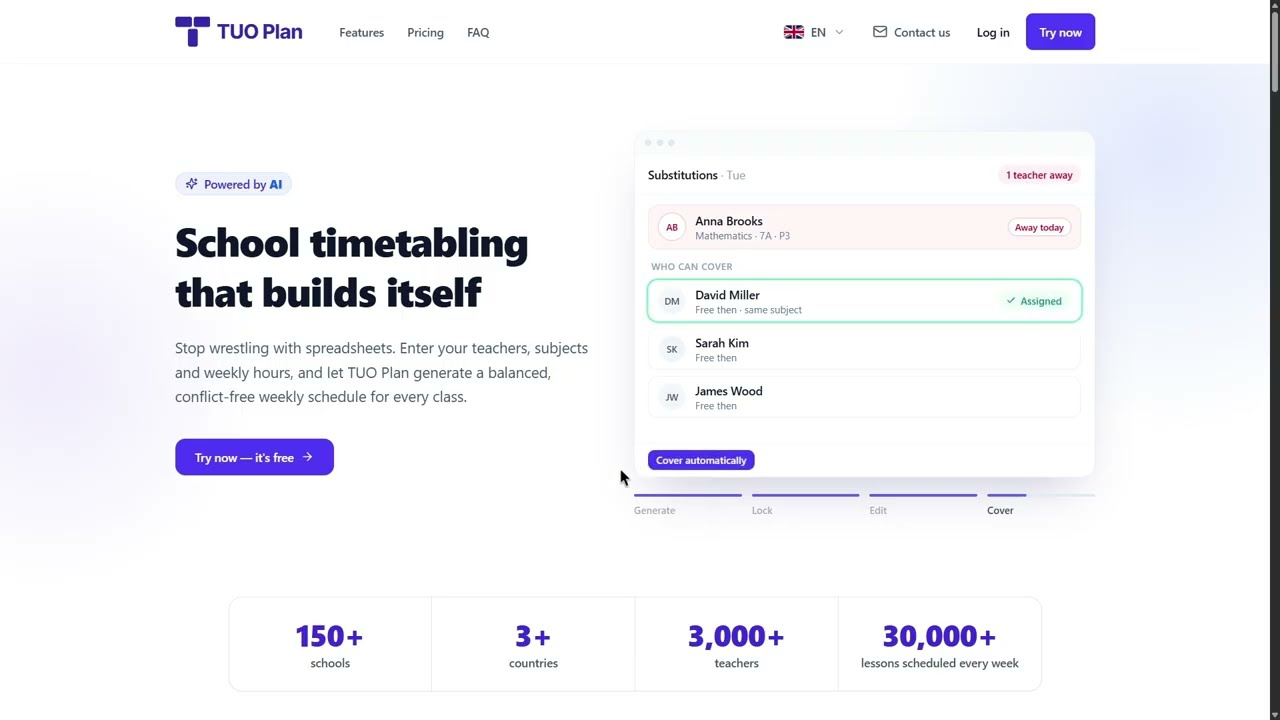
Substitutions · Tue
Anna Brooks
MathMathematics · 7A · P3
Who can cover
David Miller
Free then · same subject
Sarah Kim
Free then
James Wood
Free then
Generate
Lock
Edit
Cover
- schools
- 150+
- countries
- 3+
- teachers
- 3,000+
- lessons scheduled every week
- 30,000+
How to build a school timetable in TUO Plan
A simple walkthrough — from zero to a finished weekly timetable.
4 min 2 sec
What TUO Plan does
TUO Plan is a school timetabling program. You enter your teachers, subjects and classes, say how many lessons each class needs per week, and it builds a complete weekly timetable for the whole school — no teacher in two rooms at once, and tries to leave no class with an empty period in the middle of the day.
It fits the way your school actually runs. Set your working days and the number of periods in a day, and every timetable respects them. When something needs to change, drag a lesson to a new slot and the editor tells you straight away whether the move is allowed.
From data to timetable in 3 steps
-
1
Add school data
Teachers, subjects and classes
-
2
Assign teaching hours
Say who teaches what, to which class, and how many hours a week.
-
3
Generate the schedule
One click builds a clash-free weekly timetable for every class.
Pay only for the teachers you have
Free for every school until the end of 2026. Buy your pass now at the launch price — it starts when the free period ends, so buying early costs you nothing.
Loading prices…
Prices in Armenian dram (AMD), for one school. Your card is charged in dram, and the bank that issued it converts the charge. You buy inside the app after signing up. There are no refunds, so try everything free first.
The whole school on one board
Every class or every teacher, the whole week, on one screen. Pick up a lesson and the board marks every clash before you let go — and any change can be undone with Ctrl+Z.
Whole school
Whole school
Whole school
Whole school
Focus
Drag
Teachers
Undo
Built around how your school really works
Teachers' days off, demanding subjects, second-shift classes and several buildings are part of the plan from the first click — not fixes you make afterwards.
T. Reed · Physics
Class 7A
Class 9B · second shift
Monday
Time off
Difficulty
Shifts
Buildings
Smart substitutions when a teacher is away
Mark who is absent and TUO Plan plans the day around them. The whole day is laid out in one full-view editor where you can change any lesson by hand — and you decide how much the system does for you.
Fully automatic
One click covers every lesson that lost its teacher. TUO Plan finds a free colleague — preferring one who teaches the same subject — or, when nobody is free, rearranges the day with as few changes as possible.
Semi-automatic
Go through the affected lessons one at a time. For each, the system finds the substitutes and rearrangements that fit and recommends the best one — you choose and apply.
Manual
Click any lesson in the day editor to choose a substitute, move it or cancel it. Changes made by hand are pinned, so the automatic planner keeps them.
Only that one day changes — the weekly timetable is never touched. Publish the day, then print the staff-room sheet and each teacher’s changes.
Why schools love it
Everything you need to plan a term, without the headache.
One-click timetables
Feed in your teaching hours and generate a clash-free weekly schedule instantly with our constraint-aware engine.
No double-bookings
Teachers and classes are never scheduled twice in the same slot — guaranteed by design, not by luck.
Balanced, gapless days
Hours are spread evenly across the week and gaps are squeezed out so students and staff get tidy days.
Hard subjects at the best hours
Give each subject a difficulty, or let TUO Plan work it out. Demanding subjects are spread across the week and aimed at the late-morning periods, when pupils concentrate best.
Double lessons and subject groups
When a subject comes twice in one day, the two lessons sit back to back as a double. Group related subjects — Algebra and Geometry as Mathematics — and they are spread across the week as one.
Smart editor for the whole school
See every class or every teacher on one big board and drag lessons between periods. Before you drop, it names what the slot would break. Undo and redo any change with Ctrl+Z and Ctrl+Y.
Lock lessons in place, generate around them
Put a lesson exactly where you want it and lock it. Generate places everything still unscheduled around the locked lessons, and Optimize polishes the week — neither ever moves a locked lesson.
Every conflict explained
No cryptic errors. When a move is not allowed, TUO Plan says why in plain words — the teacher who already teaches then, the class that is not at school, the room that is full — and shows every class’s gaps on the grid.
Teacher days off and unavailable hours
Mark the periods a teacher cannot teach — a day off, hours at another school, a personal preference — and the scheduler never places their lessons there.
Shared lessons, multiple teachers
Assign more than one teacher to the same class at the same time — for split groups, labs or subjects two teachers cover together. TUO Plan books every teacher in the pair automatically.
Targeted lessons, one teacher, several classes
Electives and combined-group lessons need one teacher scheduled across several classes in the same period. TUO Plan handles it as a built-in case, not a workaround.
Shared rooms: labs, gyms, computer rooms
Tell TUO Plan which rooms classes take turns in — a science lab, a sports hall, a computer room — and how many classes each can hold. It never books a room beyond that, and keeps lessons out of the periods it is closed.
Schools with several buildings
Teach in more than one building? Give each class and room its building, and TUO Plan keeps teachers and classes from walking between buildings more than they have to — Optimize even reports how many trips it cut.
Second-shift classes
Mark when a class is not at school — the first periods for a second shift, or a late start on one day. TUO Plan puts its lessons only where the class is in, spreads them evenly across the week and starts each day the moment the class arrives.
Printable Excel & PDF
Download a ready-to-print timetable for every class and every teacher, plus a whole-staff overview, as an Excel or PDF file in one click.
Local backups you control
Download a full backup of your school to your own computer at any time, and restore it in one click if a change goes wrong or something gets cleared by accident.
Armenian, Georgian, Russian and English
Every screen and every printout works in all four languages, and you can switch at any time. Teacher, subject and class names stay exactly as you type them, in any alphabet.
Your data, isolated
Every school is fully isolated. Sign up with an email and your data is yours alone.
How do I create a school timetable?
Add your teachers, subjects and classes, assign the weekly lesson hours for each class, then press Generate. TUO Plan produces a clash-free weekly timetable for every class in a few seconds, and you can adjust it by hand afterwards.
How long does it take to build a timetable?
Setting up a mid-sized school takes about an hour, most of it typing in teachings. Generating the timetable itself takes seconds.
Does it prevent teacher clashes?
Yes. A teacher can never be placed in two classes in the same period, and a class can never hold two lessons at once. These are hard rules the generator is not able to break.
Can I edit the generated timetable by hand?
Yes. The drag-and-drop editor lets you move any lesson. Slots that would break a rule are blocked as you drag, so a manual change can never leave you with an invalid timetable.
Can I fix some lessons in place and let it schedule the rest?
Yes. Lock any lesson and it stays exactly where you put it. Generate then places every lesson that is still unscheduled around the locked ones, and Optimize layout improves the week without touching them. Only clearing the whole timetable removes a locked lesson.
How much does it cost?
TUO Plan is free for every school until the end of 2026. After that, a school buys a pass priced by its number of teachers (see the prices above). A school with up to 10 teachers can use it for free, and any school can try it in preview for as long as it likes. No credit card is needed to start.
Will it fit our working days and lesson periods?
Yes. You set how many days a week your school runs and how many periods there are in a day, and every timetable it generates stays inside those limits.
Can a teacher have days off or hours they cannot teach?
Yes. Open the teacher and mark the periods they are not available — a whole day, a few hours at another school, or a personal preference. The generator never places their lessons there, and the editor will not let you drag one there by hand.
Does it work for schools with two shifts?
Yes. In Settings, turn on two shifts and give the day enough periods to hold both, then open a class and mark the periods it is not at school — for a second-shift class, the first periods of each day. TUO Plan places its lessons only while the class is in and spreads them evenly: a class with 25 lessons a week that arrives for period 4 gets five a day, periods 4 to 8. A teacher who works both shifts is still never booked twice.
Does it work for a school with several buildings?
Yes. In Settings, switch to several buildings, add them on the Spaces page, and give each class and each room its building. A lesson follows its class unless you set another building on the lesson itself, and a lesson in a room is wherever that room is. The timetable then keeps teachers and classes from walking between buildings more than they have to.
Can two teachers share one class, or one teacher cover several classes at once?
Yes. Mark a lesson as co-taught to put more than one teacher on the same class at the same time — for split groups or team teaching — or as a merged lesson to put one teacher across several classes at once, for electives and combined groups. Both are handled natively when the timetable is generated.
What happens when a teacher is absent?
Mark who is away and TUO Plan plans the day around them — fully automatically, one lesson at a time with a recommendation for each, or by hand. It prefers a free colleague who teaches the same subject, and when nobody is free it rearranges the day with as few changes as possible. Only that day changes; the weekly timetable stays as it is.
Can I print the schedule?
Yes. Export a timetable for every class and every teacher, plus a whole-staff overview, as an editable Excel file or a ready-to-print PDF, in one click.
What should I do once I've finalized a schedule?
We recommend downloading a backup and keeping it somewhere safe. If you make changes later, or something gets cleared by accident, you can restore straight from that file — the fastest way back to a version you know was right.
Which languages does TUO Plan support?
Armenian, Georgian, Russian and English. Every screen and every Excel or PDF export is available in all four, and you can switch at any time. Teacher, subject and class names are kept exactly as you type them.
Contact us
If you have questions or would like to request a free demo of the program for your school, contact us by email.